Regula

Free · Linux · Python + Qt

A ruler that's actually to scale.

Regula turns your screen into real-size measuring tools — rulers, protractors, a screen-diagonal meter, screw and pin-pitch gauges. Lay something on the display and read its size in real millimetres.

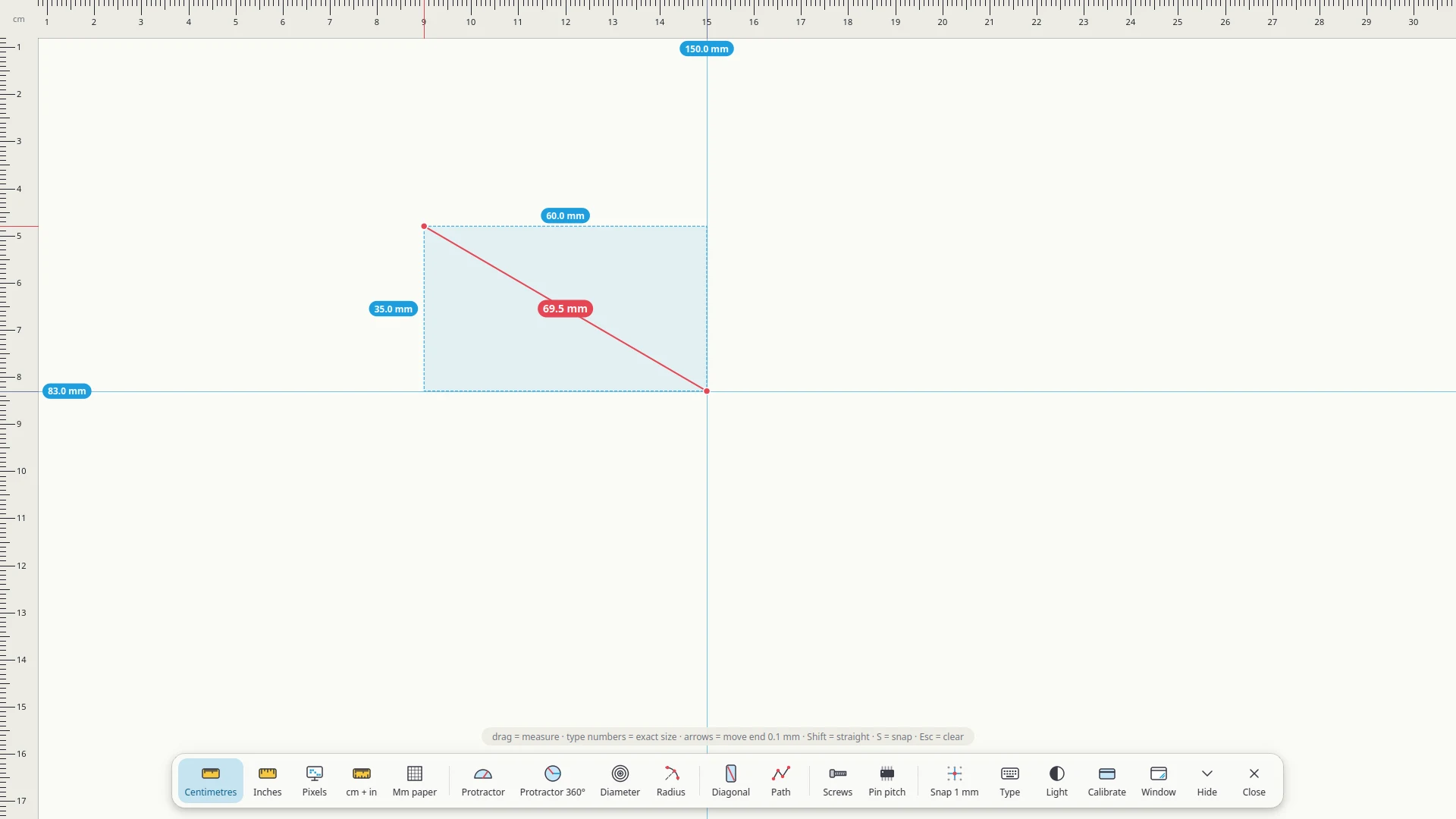
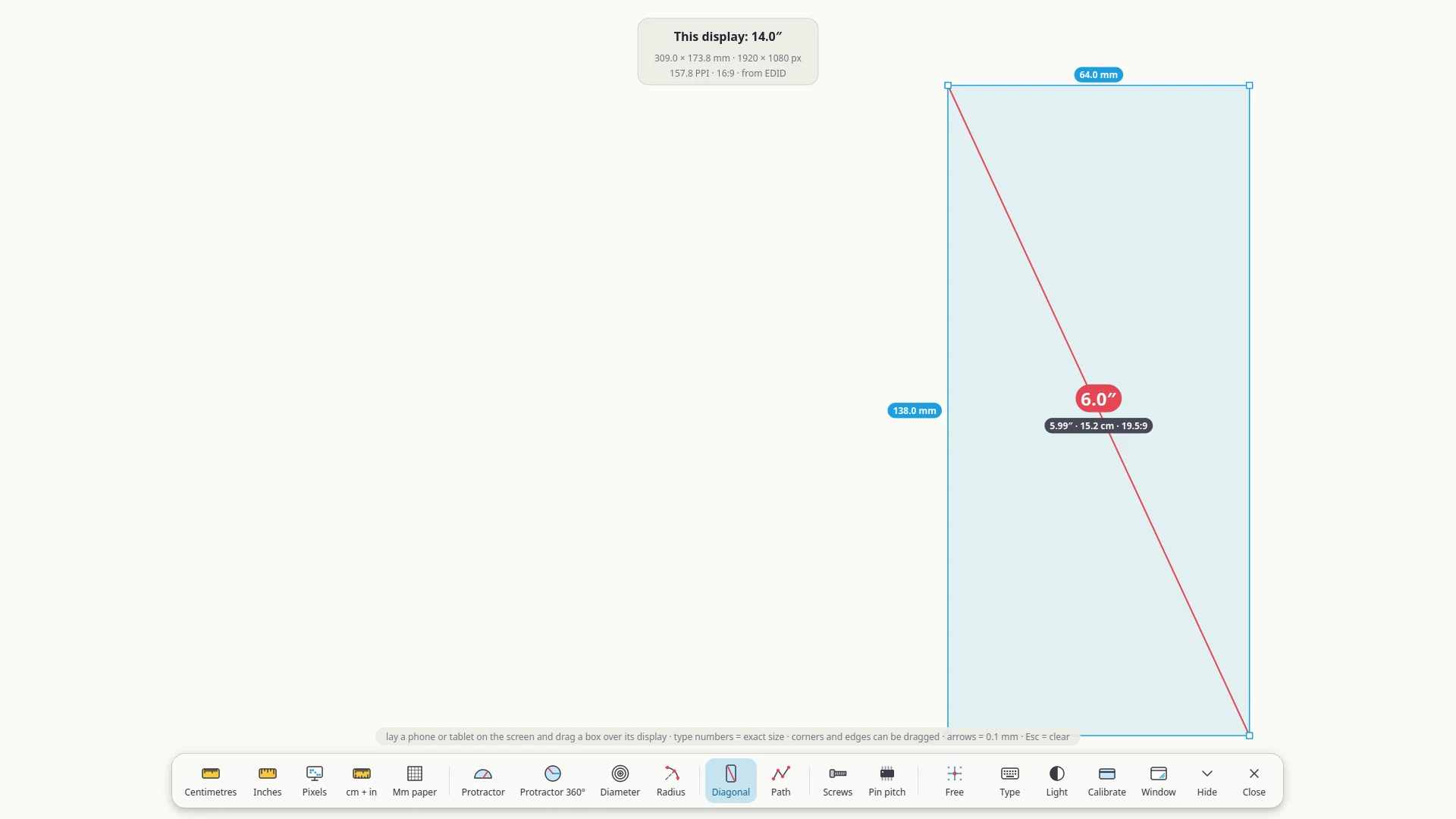
Real recording of the app: a 60 × 35 mm box with 1 mm snapping, the protractor, and a phone's screen diagonal.

How does it know the real size?

A web page can't know how big your pixels are — the ruler marks on this site are just decoration. A desktop app can ask the display itself.

  1. 1

    Your display reports its width

    Every monitor tells the computer its physical size. A 14″ ThinkPad says: 309 mm.

  2. 2

    Pixels per millimetre

    1920 px across 309 mm is 6.21 px per mm. Every tick, circle and protractor is drawn with that number.

  3. 3

    Calibrate with any card

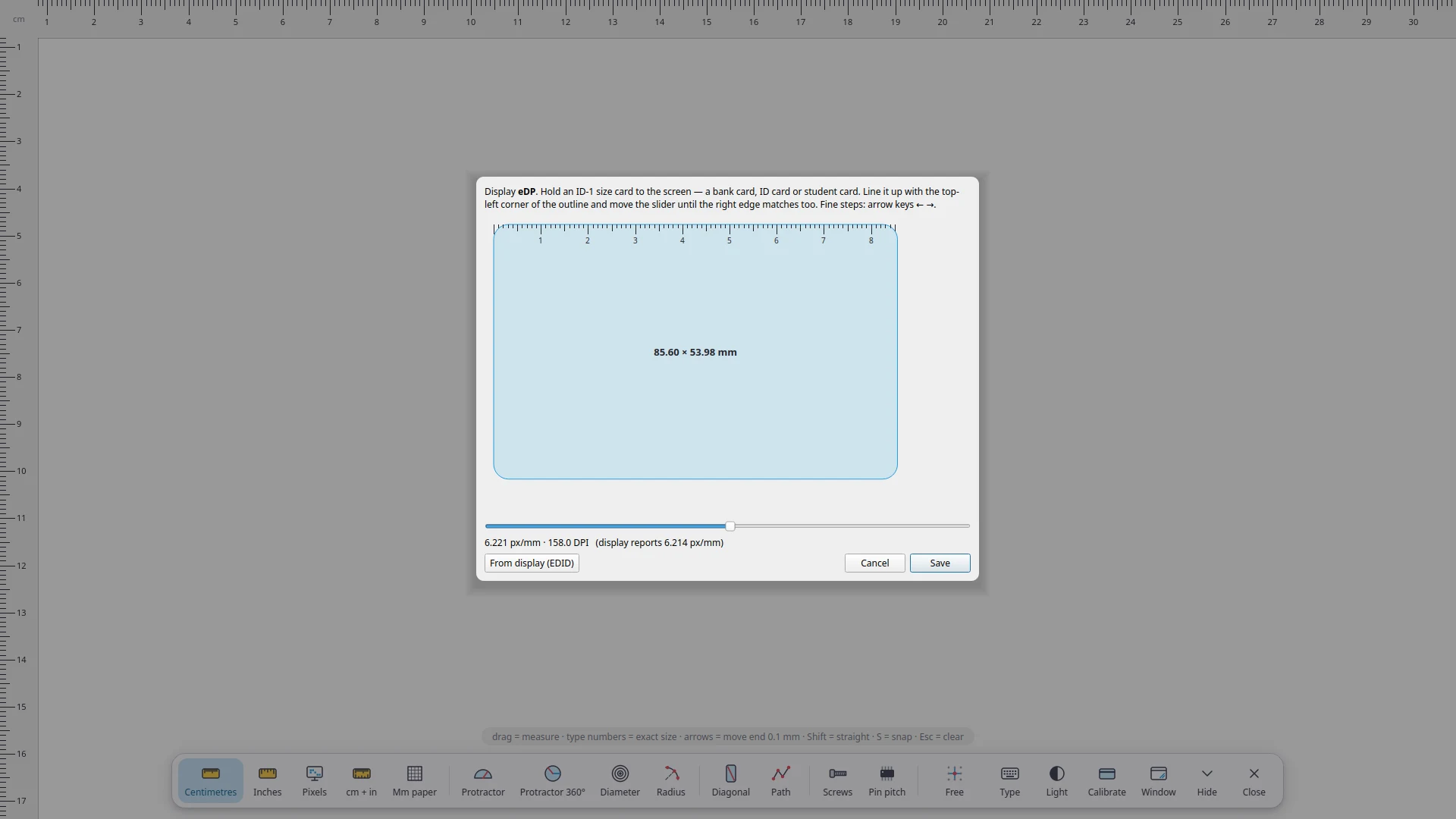
    Want it perfect? Hold a bank card, ID or student card (all 85.60 mm wide) to the screen and match the outline. Done once per monitor.

Most displays report their size to the nearest millimetre, which is usually accurate to well under 1 %. Some monitors report nonsense — that's what calibration is for. With two monitors, each one gets its own scale, and when you drag the window across, your measurements stay in millimetres.

13 tools, one panel

Pick a tool from the panel at the bottom, or press Tab to flip through them.

Rulers

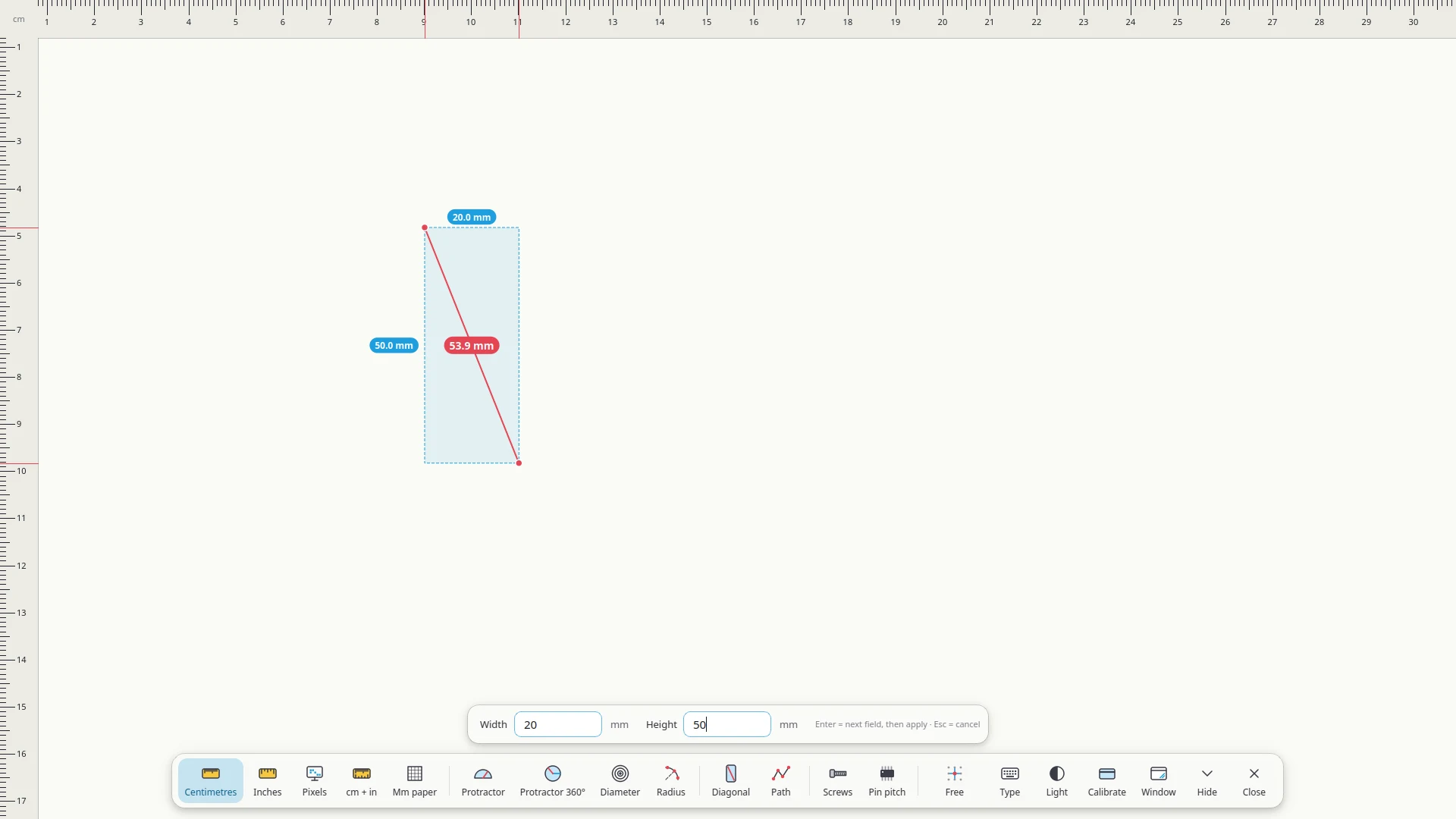
  • CentimetresMillimetre scales along two edges, a full-screen crosshair, and drag-to-measure: width, height and diagonal at once.
  • Inches1/16″ marks; readouts in decimals and the nearest fraction, like 1 3/8″.
  • PixelsMeasure anything on your screen in pixels — pairs well with the transparent background.
  • cm + inchesBoth scales on every edge.
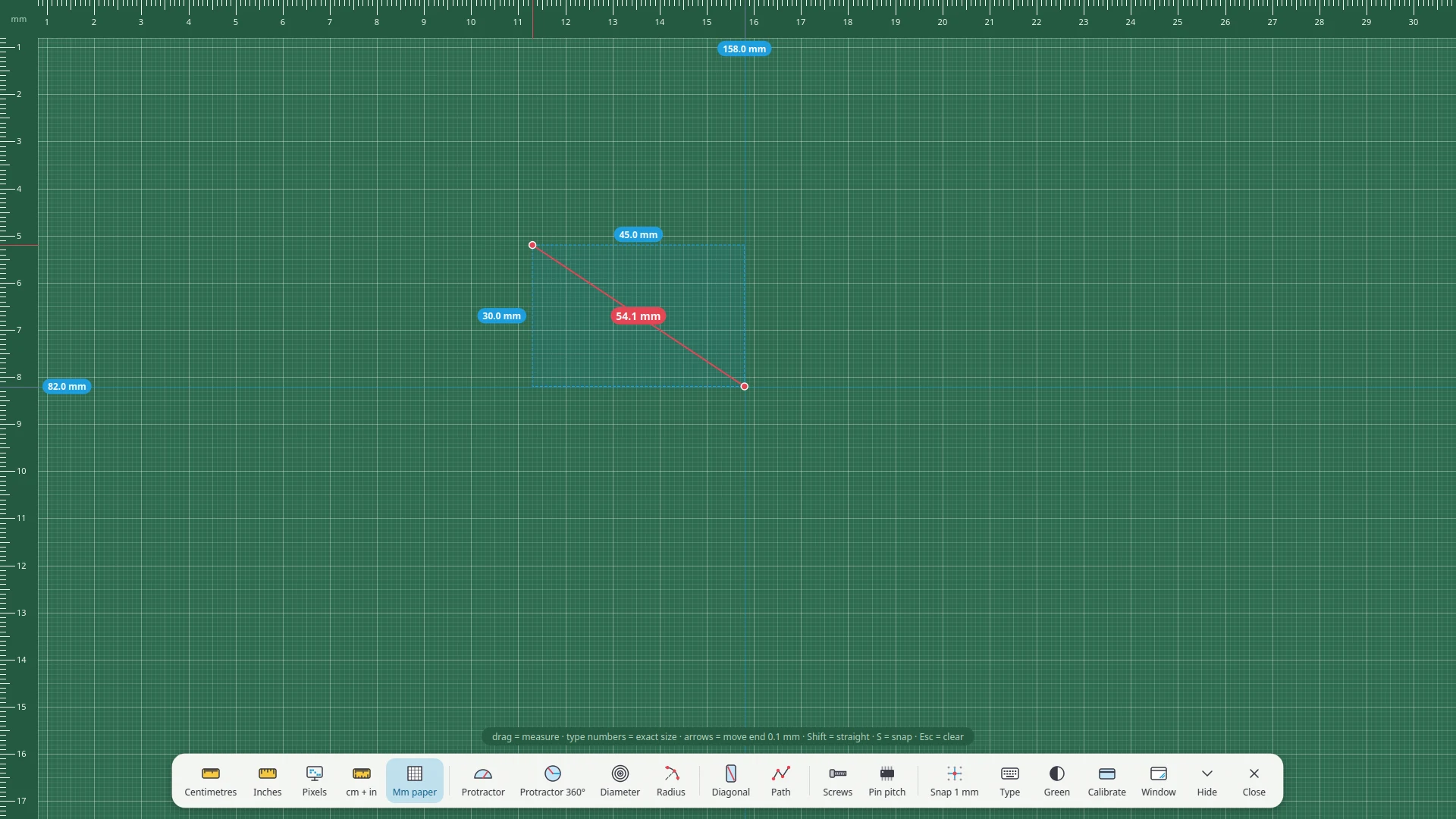
  • Millimetre paperA full-screen 1 mm grid. Try it on the cutting-mat green background.

Angles & circles

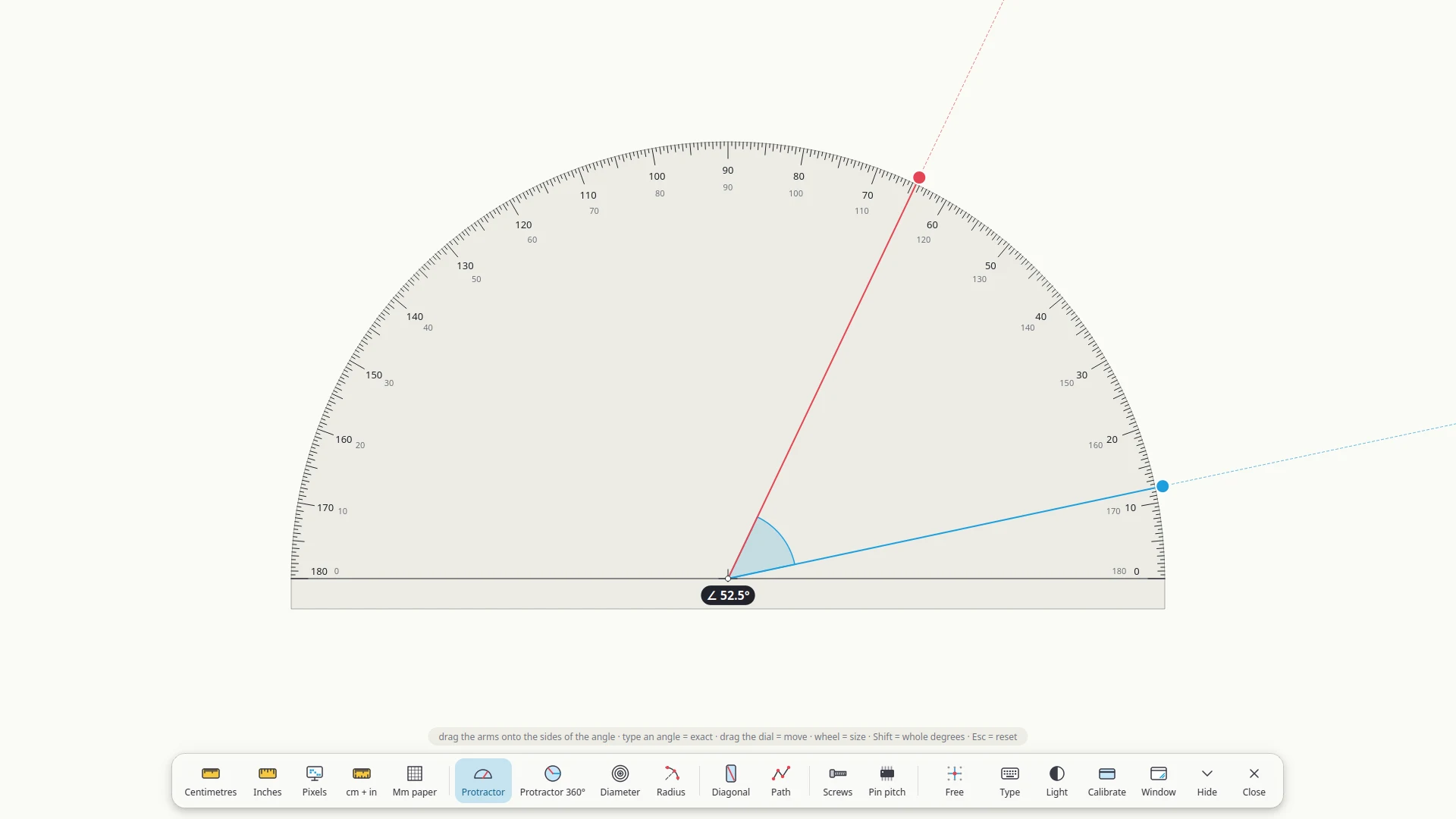
  • Protractor 180°Two draggable arms whose guide lines run across the whole screen, so you can line them up with things bigger than the dial.
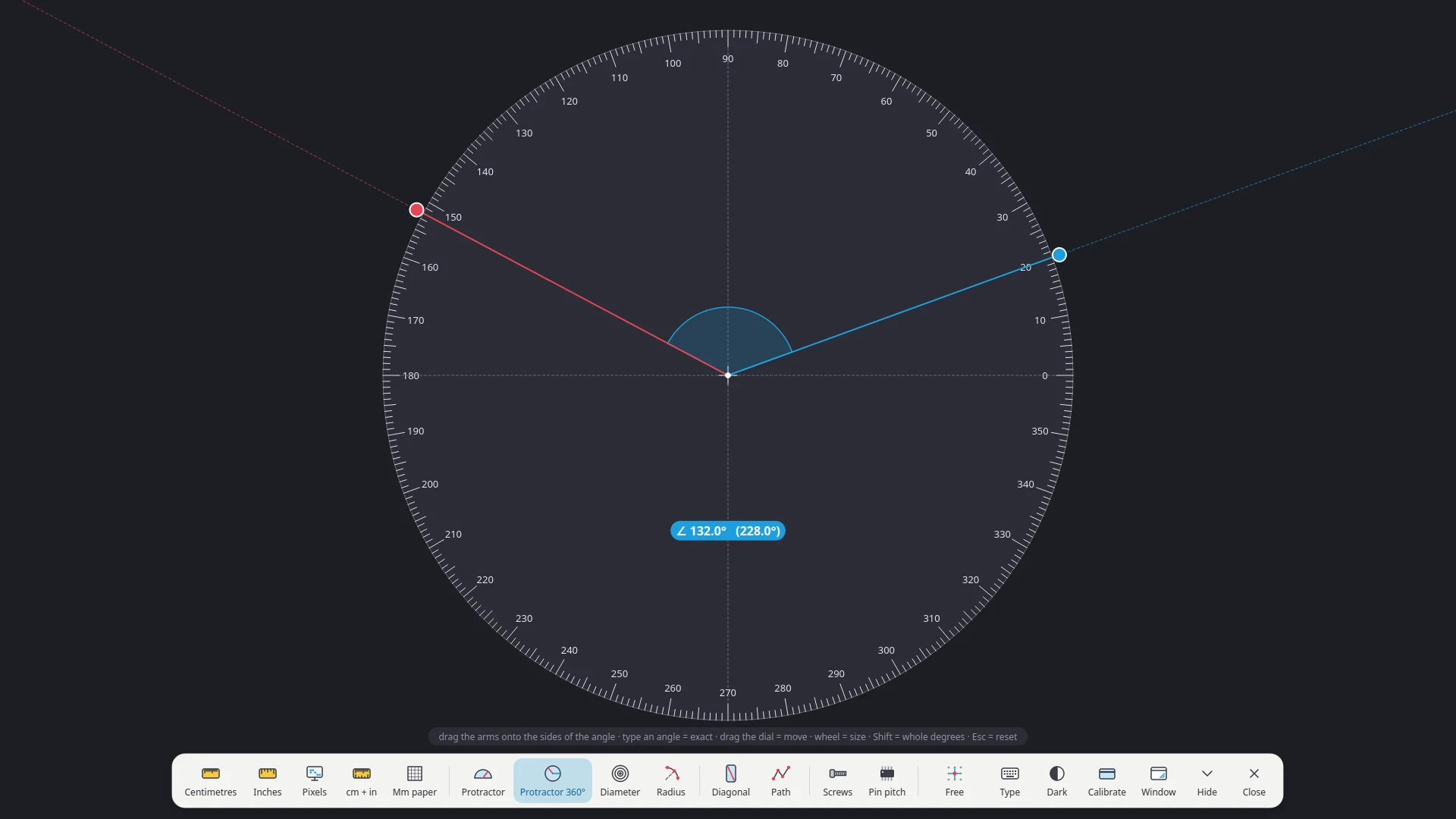
  • Protractor 360°A full circle that shows the angle and its reflex, like 132° / 228°.
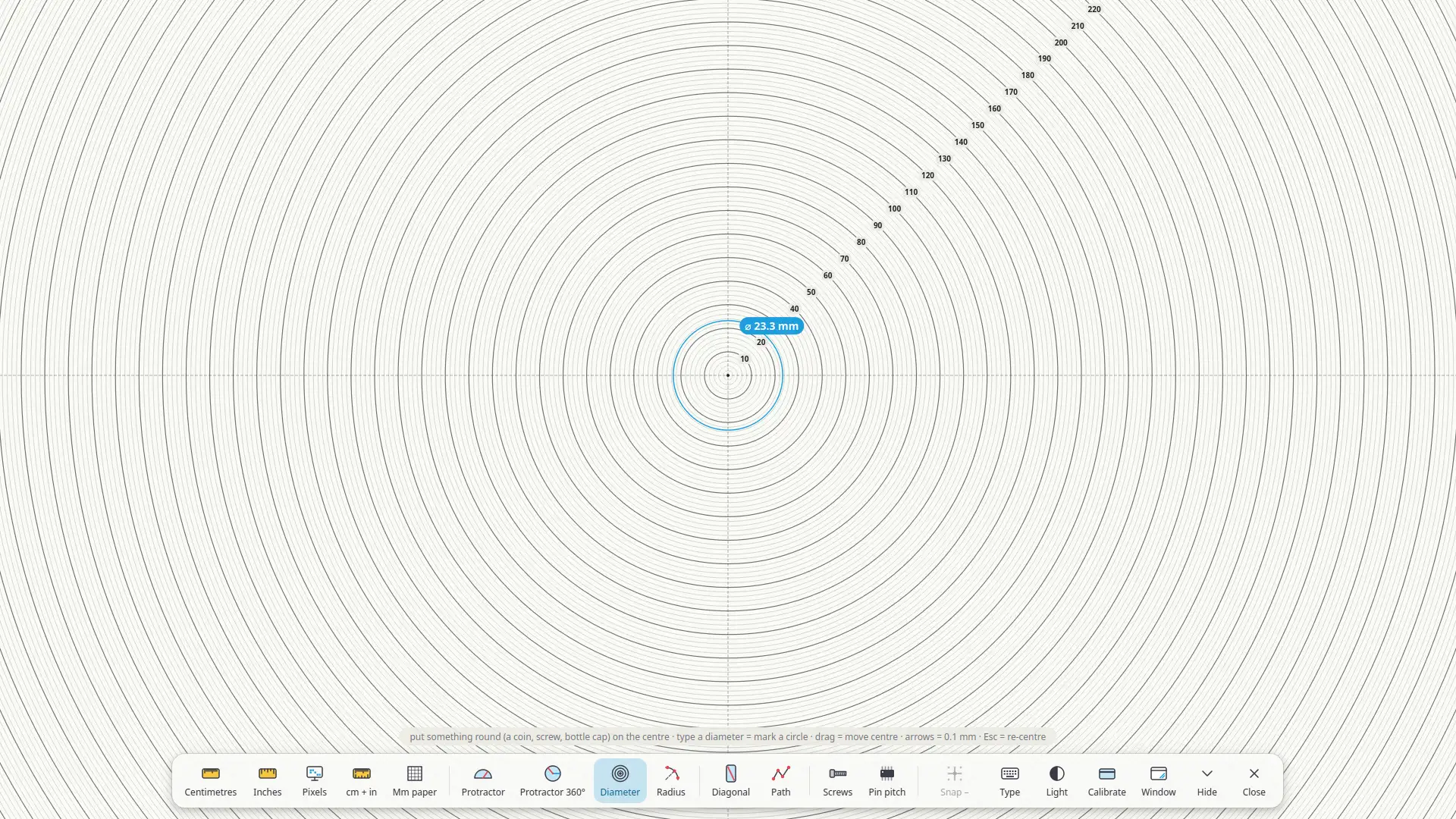
  • DiameterRings every 2 mm. Drop a coin, a screw head or a bottle cap in the middle and hover to read ⌀ to 0.1 mm.
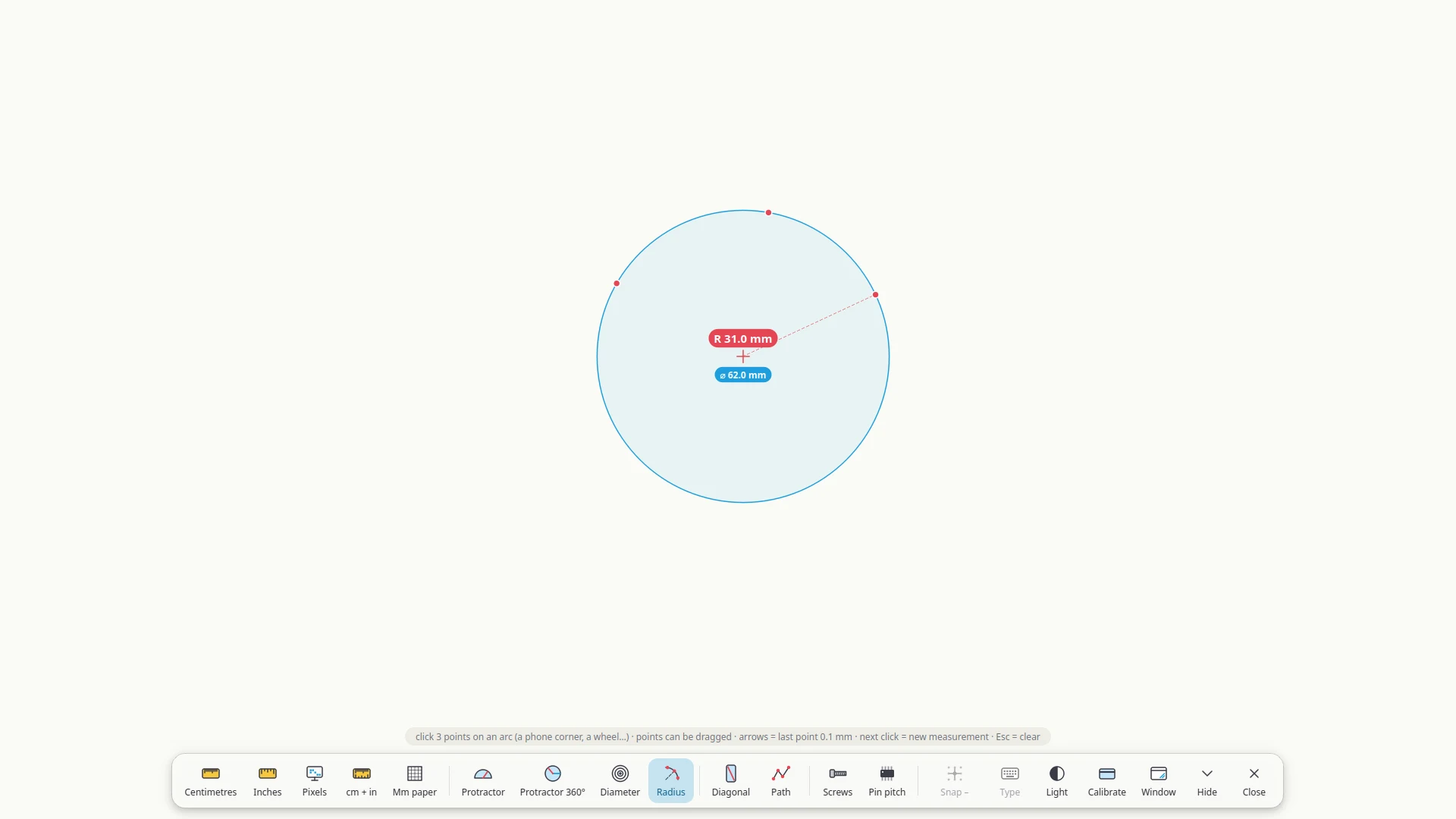
  • Radius from 3 pointsClick three points on any arc — a phone's rounded corner, a wheel, a curved edge — and get R and ⌀ of the full circle.

Measure

  • Screen diagonalLay a phone on your laptop and drag over its display: diagonal in inches and centimetres plus aspect ratio (19.5:9, 20:9…). Also shows your own screen's size and PPI.
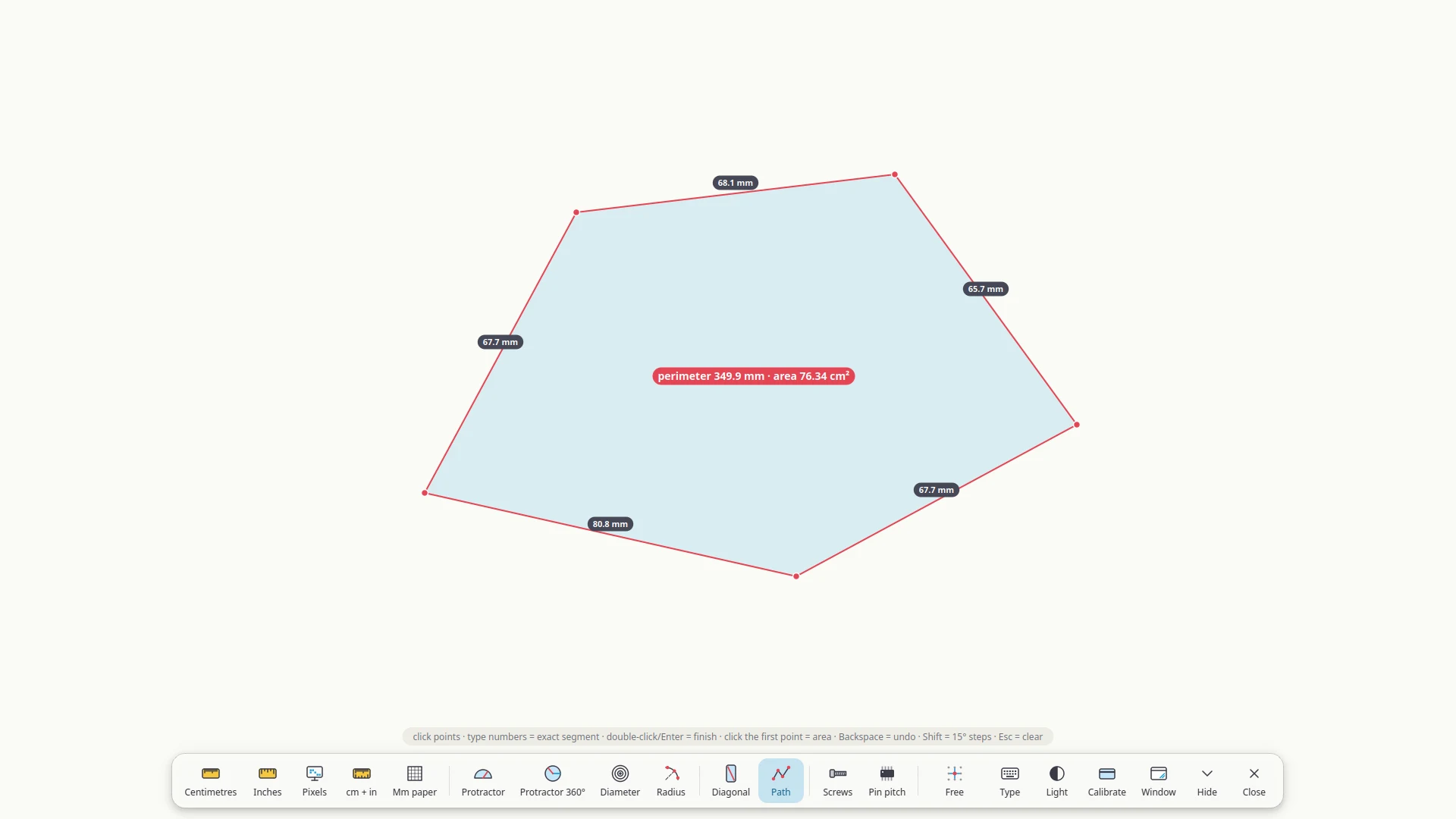
  • Path & areaClick a polyline for its total length; close the shape to get its perimeter and area.

Workshop

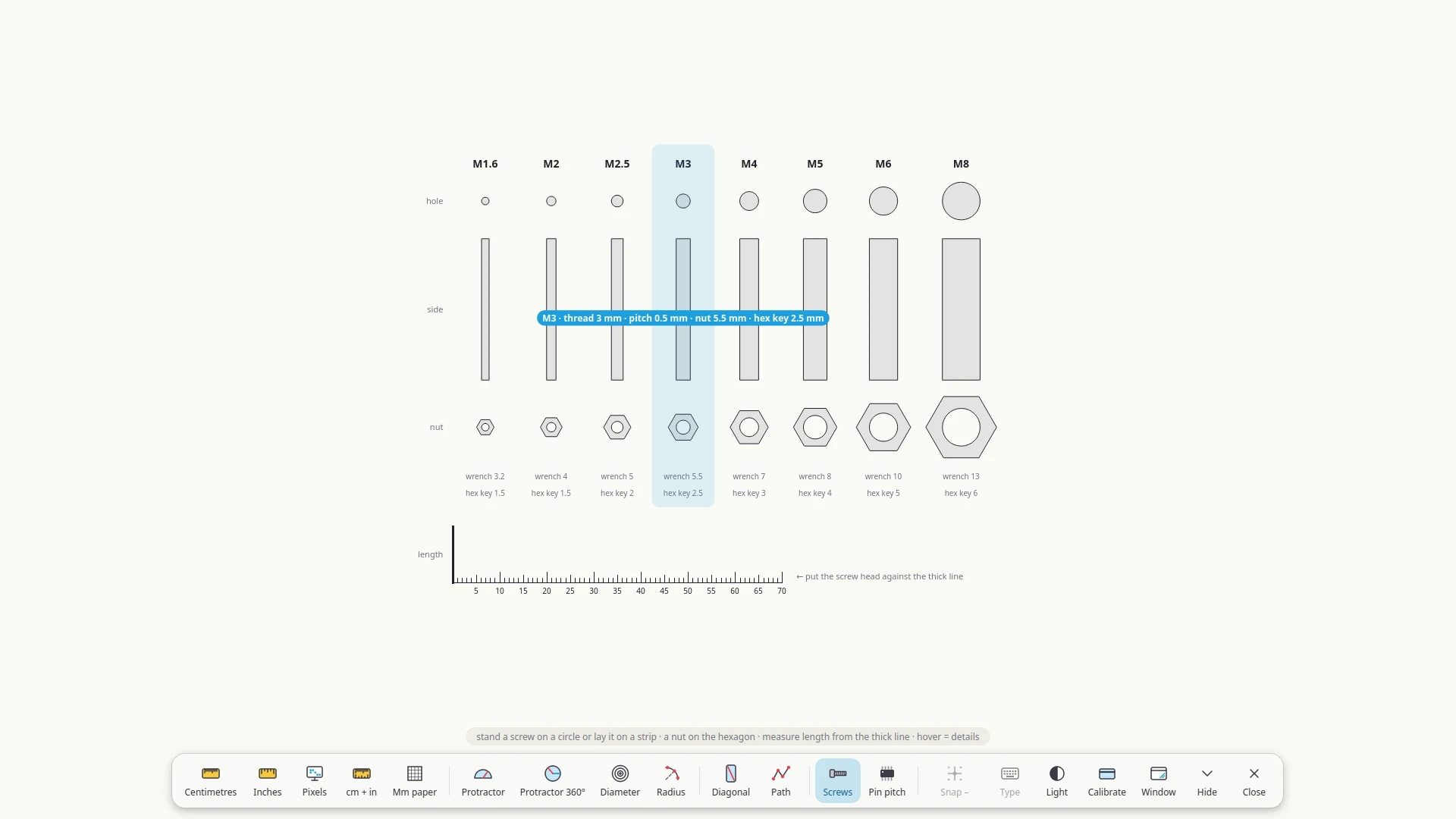
  • Screws M1.6 – M8Real-size holes, side profiles, nuts and a length scale. Hover for thread pitch, wrench and hex-key size.
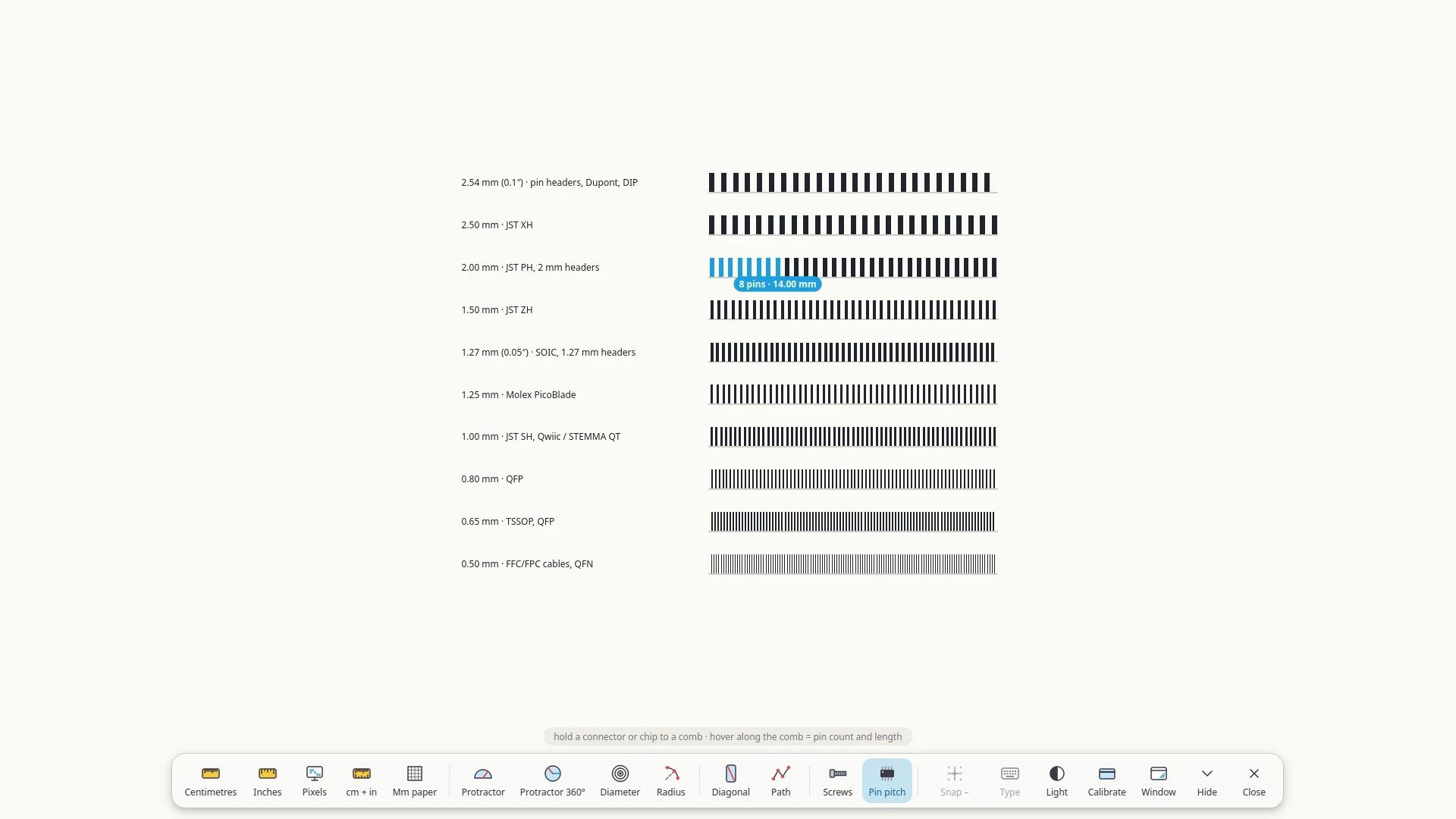
  • Pin pitchCombs from 2.54 down to 0.5 mm, labelled with real connectors — JST XH/PH/ZH/SH, PicoBlade, SOIC, TSSOP, FFC. Hover to count pins.

Made for exact numbers

Dragging with a mouse is never perfect, so Regula gives you three ways around it.

Snap to a step

Points snap to 0.5, 1 or 5 mm (1/32–1/4″ for inches, 0.5–5° on the protractor). 20 × 50 mm is exactly 20 × 50 mm.

Just type it

Start typing and fields pop up: 20 Enter 50 Enter. Works for rulers, the diagonal, paths, angles and circles.

Nudge by 0.1 mm

Arrow keys move the active point by a tenth of a millimetre — hold Shift for 1 mm.

Four backgrounds

Light, dark, cutting-mat green, and transparent — for measuring things that are on your screen.

Window or fullscreen

Fullscreen by default; F11 turns it into a resizable window that remembers its size.

Two monitors? Fine.

Each display keeps its own scale and calibration. Move the window and a 20 mm line is still 20 mm.

Keyboard shortcuts

Tab / Shift Tab
Next / previous tool
Type a number
Enter an exact size
← → ↑ ↓
Nudge 0.1 mm (Shift: 1 mm)
S
Snap step
B
Background
K
Calibrate with a card
H
Hide the panel
F11
Window / fullscreen
Esc
Clear / reset
Q
Quit

Install

You need Linux, Python 3.9+ and PySide6 (Qt 6). Developed and tested on Linux Mint 22 and Fedora 44 with X11; Wayland, Windows and macOS are untested.

  1. Install PySide6

    Any distro, in its own environment:

    python3 -m venv ~/.venvs/regula
    ~/.venvs/regula/bin/pip install PySide6

    On Ubuntu or Linux Mint you may need sudo apt install python3-venv first. Or use your distro's package: sudo dnf install python3-pyside6 (Fedora), sudo pacman -S pyside6 (Arch) — then run Regula with plain python3.

  2. Download and unpack

    Get regula.zip, then:

    unzip ~/Downloads/regula.zip -d ~/.local/share/
  3. Run it

    ~/.venvs/regula/bin/python ~/.local/share/regula/regula.py

    First time? Press K and calibrate with a card if you need exact results.

  4. Add it to your app menu optional

    mkdir -p ~/.local/share/applications
    cat > ~/.local/share/applications/regula.desktop <<EOF
    [Desktop Entry]
    Type=Application
    Name=Regula
    Comment=Real-size rulers, protractors and measuring tools
    Exec=$HOME/.venvs/regula/bin/python $HOME/.local/share/regula/regula.py
    Icon=$HOME/.local/share/regula/regula.svg
    Categories=Utility;
    StartupWMClass=Regula
    Terminal=false
    EOF

Settings and calibration are stored in ~/.config/regula/config.json.

Download

One Python file and an icon. No account, no telemetry, no network access — read the code before you run it.

Updated November 2026.